
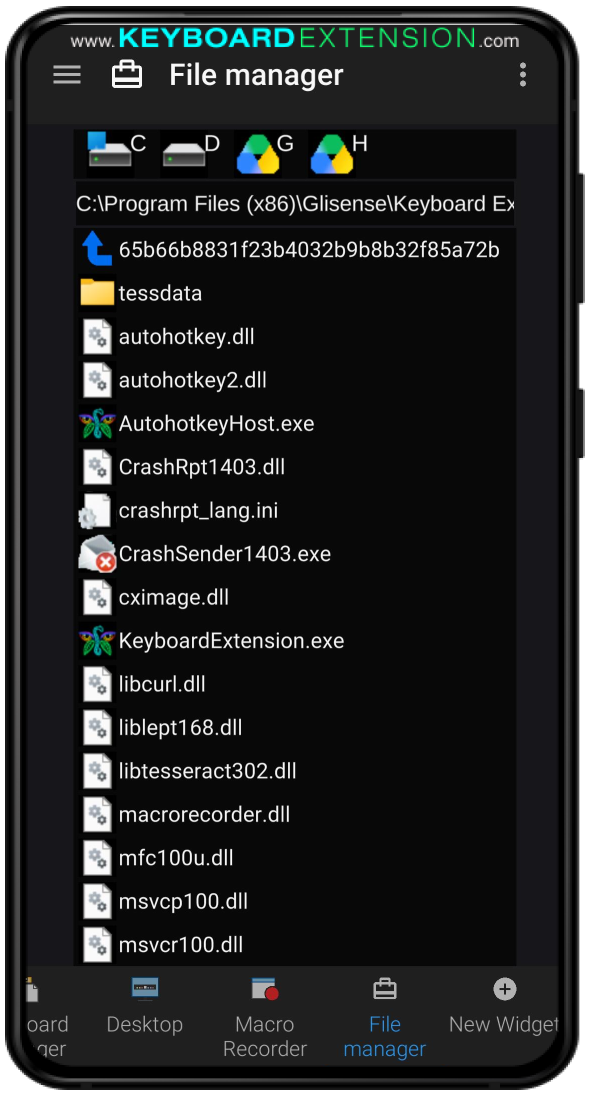
File manager
-
Works offline, no data sharing
This widget operates entirely without an Internet connection. All data processing and communication happen locally between your computer and Keyboard Extension device. Your personal information and widget data are never transmitted to external servers or shared with us, third parties, or anyone else.
-
No download required
No manual downloads or installation required. Simply activate the application the widget is linked to, and it will appear automatically.
-
Automatic updates
Widgets stay up to date automatically. Updates are checked periodically and whenever you restart the application, with no maintenance required.
-
Plugins included
All required plugins are included at no extra cost
-
Context aware
Widgets activate automatically when a relevant context is detected on your Windows PC, such as switching to a specific application, opening a window, or selecting text.
-
Safety tested
Every widget undergoes internal testing and review before public release to verify its safety, protect user privacy, and ensure it contains no harmful or malicious content.
Free pinned widgets and their associated plugins are already included and become available when you activate the Navigation widget. Sign-in may be required.
About this widget
Use this widget to manage files on your computer from a screen of a smartphone
Features included
Tap a control to see its details. No commands are sent to your PC.
Copy selected files.
Cut selected files.
Delete selected files.
Open a specified path.
Paste copied or cut files.
Select a drive.
Sort files by date.
Sort files by name.
Provides available file and interface icons.
Returns available drives.
Returns files in the current directory.
Returns icons for available drives.
Returns the current directory.
Returns the selected drives.
Plugins included
Built-in · Version 1.1.126
How it works
Install the Windows server app and mobile client app (Android or iOS).
Run Keyboard Extension app on Windows PC and smartphone (Apple or iOS). Connect via Wi-Fi, Bluetooth or Web-Server.
 Open Common tools (pinned widget available for all applications) on your PC
The widget becomes available when the application is active.
Use your smartphone or tablet to access the controls.
Screenshots
Explore controls
Choose a control to see its details.
Click a highlighted area to locate its control. Press Esc to close.